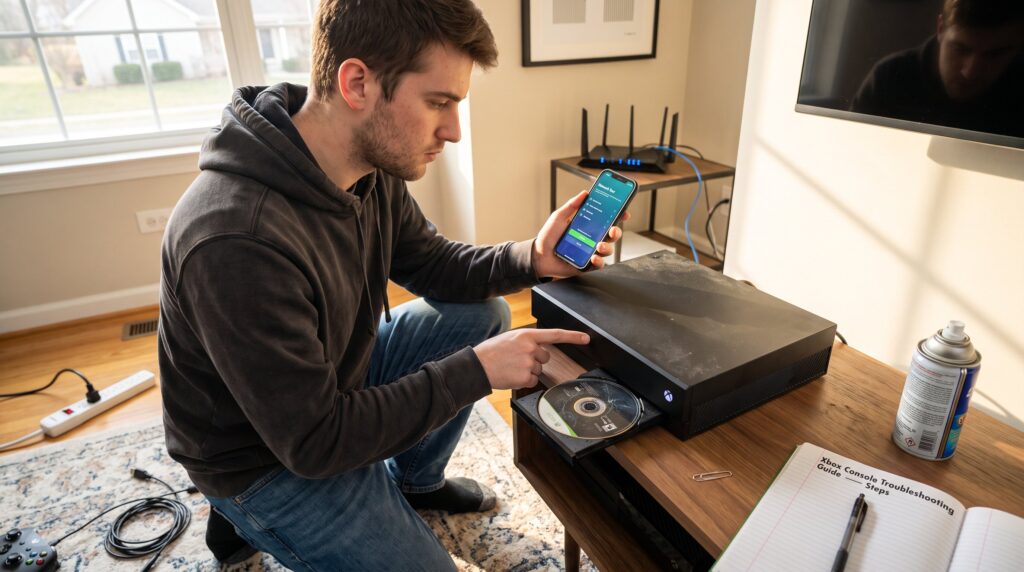
Xbox Console Troubleshooting Guide readers get a fast, practical roadmap to identify and fix the most common console problems. This guide opens with immediate answers for power, network, performance, and controller faults, then shows step-by-step checks to isolate causes. It assumes a gamer who wants clear actions, not jargon, the kind of instructions that let someone diagnose a boot failure or restore party chat in under 15 minutes.
Table of Contents
ToggleKey Takeaways
- The Xbox console troubleshooting guide provides clear, actionable steps to diagnose and fix common issues like power failures, network problems, performance drops, and controller faults.
- For power and boot issues, start with simple outlet tests, full shutdowns, and checking or resetting the power supply before considering repairs.
- Network problems often stem from NAT type or router settings; using the built-in network test and configuring router ports or UPnP can restore Xbox Live connectivity.
- Overheating is a primary cause of freezes and performance loss; ensure adequate ventilation, clean vents regularly, and manage play sessions to keep the Xbox console cool.
- Controller problems are typically related to batteries, pairing, or interference; updating firmware and using wired connections can reduce latency and improve responsiveness.
- DIY fixes cover resets, cleaning, updates, and network adjustments, but persistent hardware failures or unusual noises warrant contacting official Xbox support for professional repair.
Power, Boot, And Disc Drive Issues: Step‑By-Step Diagnosis
Fact first: if an Xbox shows no power or fails to boot, the most likely culprits are the outlet, power supply, or a corrupt startup state. Start simple: test the wall outlet by plugging a lamp or phone charger into the same socket and confirm power. If the outlet works, unplug the console and hold the Xbox power button for 10 seconds to force a full shutdown, then wait 30 seconds before reconnecting.
If the console still won’t power on, try a different outlet and remove any surge protector or power strip. A direct connection often reveals a faulty surge protector. When the console lights come on but the system won’t finish booting, perform a full power cycle: hold power 10 seconds, unplug, wait 30 seconds, then plug in and press the power button once.
Disc drive specific: if a disc isn’t recognized, begin with the disc itself. Wipe the disc from center to edge with a soft, lint-free cloth: test the disc in another compatible console or drive when possible. Change Power mode to Energy saving (Settings → General → Power mode & startup) and then do a full shutdown to force a cold boot: this can resolve some disc detection faults. For a stuck disc, power off, unplug, and use the manual eject hole per the console’s hardware instructions with a straightened paper clip.
Warning signs that need support: repeated failure to power, loud unusual drive noises, or a drive that rejects multiple known-good discs. Hobbyists who want extended repair context can consult a complete repair guide that covers deeper hardware diagnostics and safety steps.
Network, Party Chat, And Xbox Live Connectivity Troubleshooting
Fact first: most connectivity problems stem from NAT type issues, router state, or account privacy settings. Run the built-in network test: Settings → General → Network settings → Test network connection. That will show whether the console has internet and NAT status.
If NAT is Moderate or Strict, enable UPnP on the router or set port forwarding for Xbox Live ports (TCP 3074, UDP 88, 3074). If the router lacks UPnP, assigning a static IP and forwarding ports often changes NAT to Open. After router changes, restart both router and console: wait 30 seconds before powering back on to let devices renegotiate.
Party chat failures often relate to privacy or the Alternate MAC address. Check account privacy: Settings → Account → Privacy & online safety → Communication & multiplayer, ensuring voice and multiplayer communication are allowed. Clear the Alternate MAC address: Settings → Network settings → Advanced → Alternate MAC address → Clear, then restart the console.
If Xbox Live services appear down, verify service status before deeper troubleshooting. For context on platform-wide fixes and how Microsoft handled past updates, a relevant dashboard troubleshooting report from GameSpot examined how Microsoft responded to update issues and can help set expectations for service-side problems: dashboard update report.
Practical tip: if party chat drops frequently, have users test a different game or use the Xbox mobile app voice chat to isolate whether the issue is game-specific or Xbox Live-wide.
Freezes, Crashes, Performance Drops, And Overheating Solutions
Fact first: overheating and blocked airflow account for a large share of freezes and performance drops. The quickest check is tactile: if the console is hot to the touch after 30–60 minutes of play, it likely needs better ventilation.
Move the console out of enclosed cabinets and give it at least 10–15 cm of clearance on all sides. Avoid carpeted surfaces and close-fitting shelves. Clean dust from vents using compressed air in short bursts: do not insert objects deep into vents. If the console still overheats, reduce session length and let the system cool between matches.
For unexpected freezes and crashes, perform a hard reset: hold the power button for 10 seconds, then restart. If crashes persist in a single game, clear the reserved space or reinstall the game: corrupted game installs cause repeat failures more often than hardware does. Keep firmware and game updates current, automatic updates prevent software regressions that may degrade performance.
If performance drops gradually (long load times, stuttering), check storage health. Replace external HDDs or use an SSD for install-heavy games: modern titles benefit from SSD speeds and often show fewer load-related freezes. Persistent thermal shutdowns, repeated crashes across multiple titles, or fan failures are reasons to contact official repair channels rather than continuing DIY fixes. For foundational reading about Xbox troubleshooting and repair approaches, the site’s overview provides useful background: site overview.
Controller, Accessory, And Peripheral Problems: Pairing To Latency
Fact first: most controller problems are battery, pairing, or interference related and fix with a few quick checks. For wireless pairing, press the Xbox button on the console (or hold the pairing button on Series X/S), then press the controller pairing button until LEDs sync.
If pairing fails, replace or recharge batteries and try a wired connection with a certified USB cable. Controllers with firmware issues can be updated: connect via USB and check Accessories in Settings for firmware prompts. For high input latency, move closer to the console and remove obvious interference like microwaves, Bluetooth speakers, or crowded Wi‑Fi channels.
Wired controllers reduce latency and bypass RF issues: for competitive play, a wired connection often cuts input delay significantly. If an accessory fails on multiple consoles, the accessory itself is likely faulty, contact the manufacturer or use warranty channels. A practical test: pair the controller to a second console or PC. If the device behaves the same, replace it.
Accessory wobble or thumbstick drift sometimes arises from debris or wear. Lightly cleaning around the stick base with compressed air can help short-term, but persistent drift usually requires replacement. For stepwise repair guides about classic hardware failures like the Red Ring era, consult the focused troubleshooting guide on repair methods: Red Ring causes.
Conclusion: When To DIY, When To Contact Support, And Preventive Tips
Direct insight: DIY is appropriate for resets, cleaning, firmware updates, and network changes. They resolve roughly 70–80% of common faults quickly. Contact official Xbox support when the console won’t power at all, the disc drive makes abnormal noises, overheating persists even though ventilation, or accessories fail across multiple systems.
Preventive tips: keep firmware updated, maintain unobstructed vents, use surge protection, and perform full shutdowns rather than sudden unplugging. For a broad primer on repair philosophy and long-term maintenance, the site’s full guide offers a deeper view into safe repair practices and when to escalate to professional service.